Continuous Delivery series part two
Glad to have you back in the second part of the Continuous Delivery series! Since this series is hands-on, make sure that you have seen the first part as you’re going to expand further in this blog. In the first part, you already have learned about principles and techniques to build up your project structure. You have versioned your tools required to build the new .NET SDK style-based SQL Database projects and added the famously known tSQLt framework side-by-side.

- Gijs ReijnCloud Engineer
In this part of the series, you are going to cover a lot of ground principles and techniques on versioning, packaging and in the end push your package to an artifact repository. Before you begin, there is one additional prerequisite you need in this part, that is an Azure DevOps services organization. If you don’t have one, you can sign up for free. If you already do, let’s dive right into it by talking on how you can create the ability to package and version your Data-Tier Application.
Create the ability to package and version it
Packaging and versioning. In every DevOps image, you’ll find those words. For example, take the flow coming directly from the learning site of Microsoft.
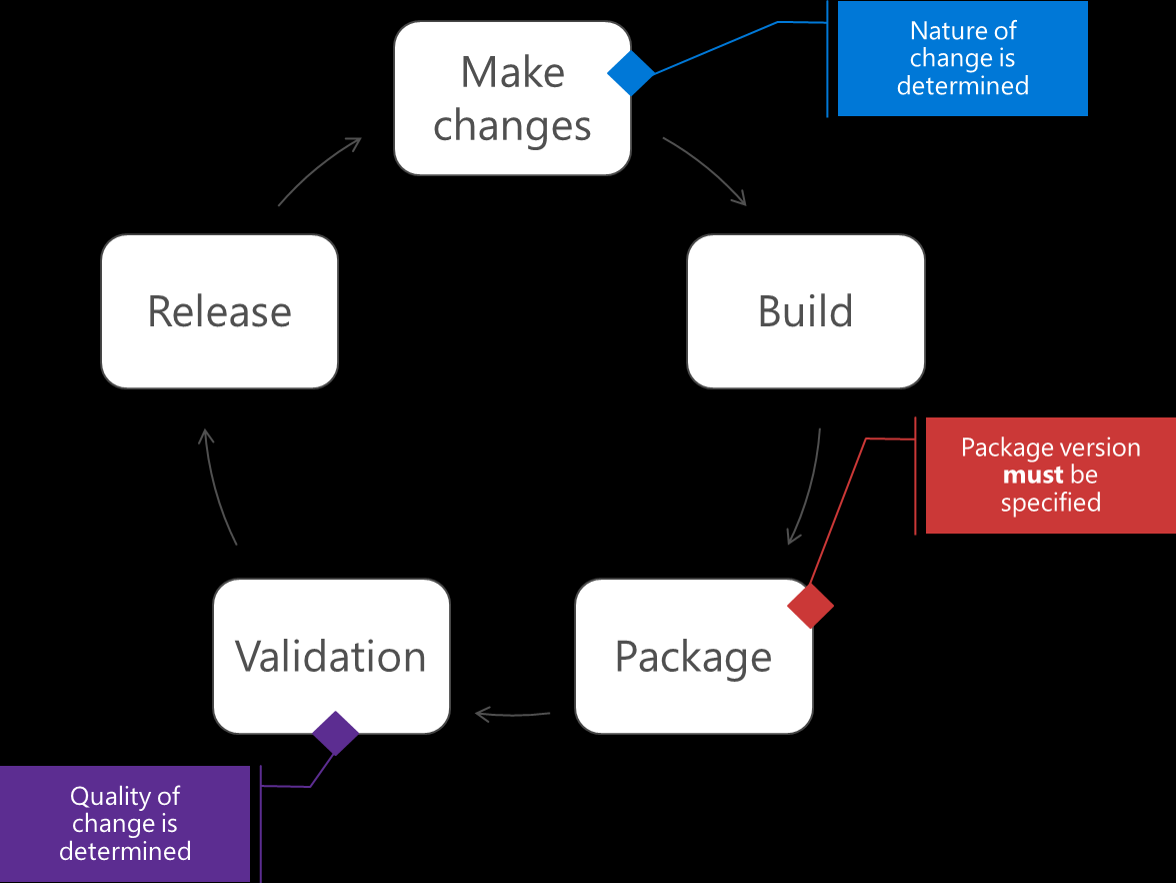
Packaging is the process of building some kind of installer that includes all your applications resources, in this case a Data-Tier Application, and distribute them on a SQL Server platform. When you make a package, it typically involves giving it a version number. Commonly known in the software community, it can involve three types of changes when you make updates to your database:
- The major version indicates that the package and its contents have changed significantly. Most of the time, major changes aren’t guaranteed to be compatible and usually have breaking changes included
- The minor version contents have extensive modifications but are smaller compared to the major version. These changes can be backwards compatible with previous versions
- The patch version is used to indicate some kind of flaw, bug or malfunctioning part. These kinds of changes are backward-compatible
There might be one more version, which is the fourth digit and can determine a pre-release of some kind. Images say a thousand words more.
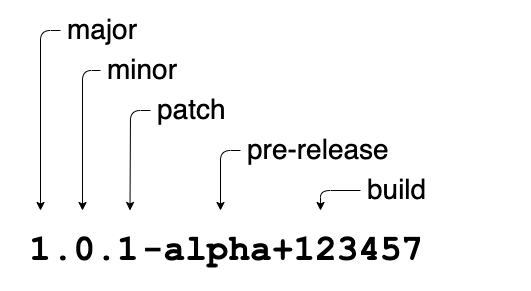
This image above introduces semantic versioning, which is commonly known in the world of software. In SQL Database development, it is not commonly known to version the database, so why should you do it? Well, there are actually quite some good reasons to do so:
- It minimizes downtime caused by database changes. Developers can easily roll back, make database diffs to identify the root cause of the problem and build preventative measures
- It improves developer productivity as it allows you to share your database between different stages, and identify on which stages versions “life”
- It easily helps in reproducing the issue locally when a bug is found in production
- It exposes versioning to your other applications helping you to use a technique called “Slowly Changing Dimension”
Enough said about packing and semantic versioning. Is there a tool that can apply Semantic Versioning?
Enter versioning with GitVersion tool
Versioning your packages (or artifacts produced by a build server) is still a struggle within some teams. Some bump up the version by hand, some use the default build number from the build server. Having versions of your packages requires a certain level of maturity that teams should be adopting, since it goes hand-in-hand by defining your branch and merge strategies. Therefore, enter GitVersion.
GitVersion is a tool that looks at your Git history to calculate what version should be used. This solves some common challenges, whereas every build you produce results in a different build number. GitVersion supports the well-known release strategy like Gitflow or GitHubFlow.
Let’s see how you can configure a typical development workflow by using the Mainline Development mode, which uses GitHubFlow. GithHubFlow allows you to develop on main or master branch. The main rule of mainline development is that the main should always be in a state that it could be deployed to production. This helps in forcing certain quality in, before you merge your pull requests.
- Open RequiredModules.psd1 and add the following content to retrieve the GitVersion command line tool
Create GitVersion.yml file in the root of your repository, add the Versioning Mode mainline and save the file
Run Resolve-Dependency.ps1 in your Windows PowerShell terminal
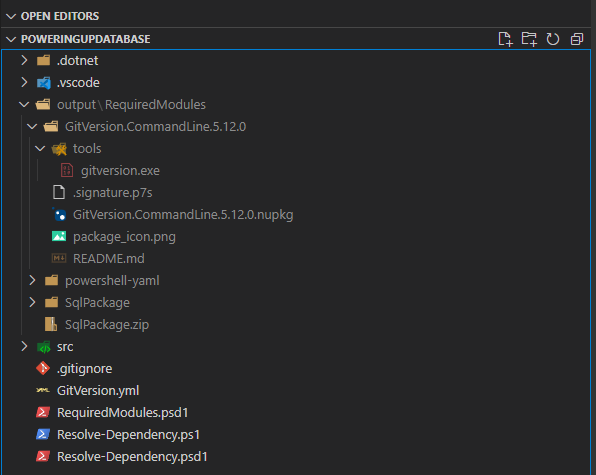
In the output folder, you’ll notice that GitVersion.CommandLine tool is added to your toolbox.
Now you can tag your main or master branch by running git checkout master and git tag 1.0.0. Afterwards run the gitversion.exe and you shouldn’t be surprised to see the value of FullSemVer is 1.0.0.
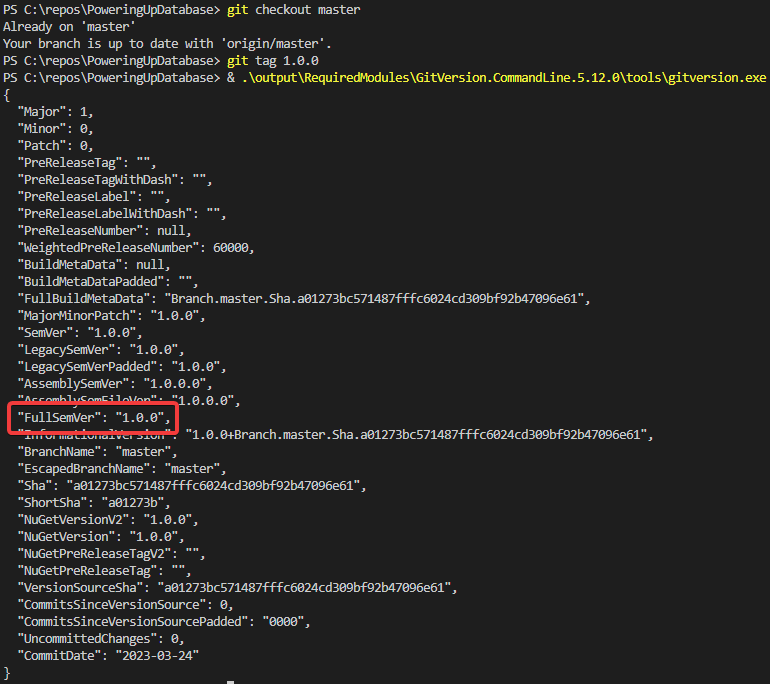
Figure 4: Tag branch to latest
With every approach you take, it might work for some people and not for others. It really depends upon your team to decide what versioning and release strategy you want to apply. Now that you had a quick glance at GitVersion, let’s move on and package the output in a NuGet package.
Introducing NuGet for Data-Tier Application
Every software developer should be familiar with NuGet. NuGet is an essential tool where developers can create, share, and consume code. When a developer creates a package that can be shared with others, it creates a NuGet package. Simply, a NuGet package is a single ZIP file with the .nupkg extension that contains files related to code, and a descriptive manifest that includes information like the version number.
While NuGet packages can be created by the NuGet CLI , it’s also possible to do it from .NET CLI which is great, as you already have it available in your toolbox. Before you are going to package the Data-Tier Application, a quick story about the build eco-system that .NET uses behind the scenes. You’ve been running dotnet build now a couple of times. dotnet build uses MSBuild behind the scenes to build the .sqlproj project. Within the .sqlproj file, you should have noticed the Sdk name attribute which is associated with a software development kit (SDK). Each project SDK contains a bunch of MSBuild targets and tasks that are responsible for creating, packing, and publishing code. Why this small side story about MSBuild and it’s eco-system? In the first part of the series, you already modified the .sqlproj by hand. Most developers don’t have to do this by hand, as they primarily work in Visual Studio. Visual Studio knows about these settings and modifies it for you. While this is certainly helpful, it doesn’t always expose what is happening behind the scenes. In Visual Studio Code, you don’t have a direct editor or settings pane for your project file. Knowing your tool in that sense is a must and broadens your knowledge.
Let’s run it by example and see how the internals work a bit.
- In your Windows PowerShell terminal, execute dotnet pack
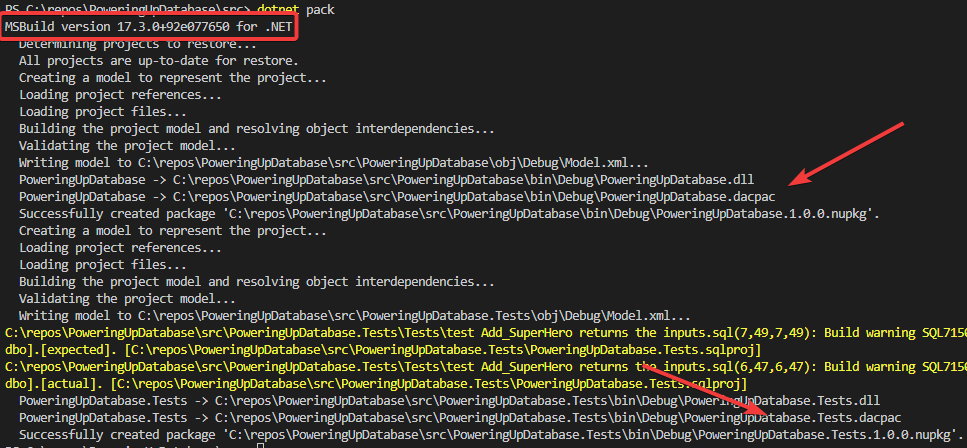
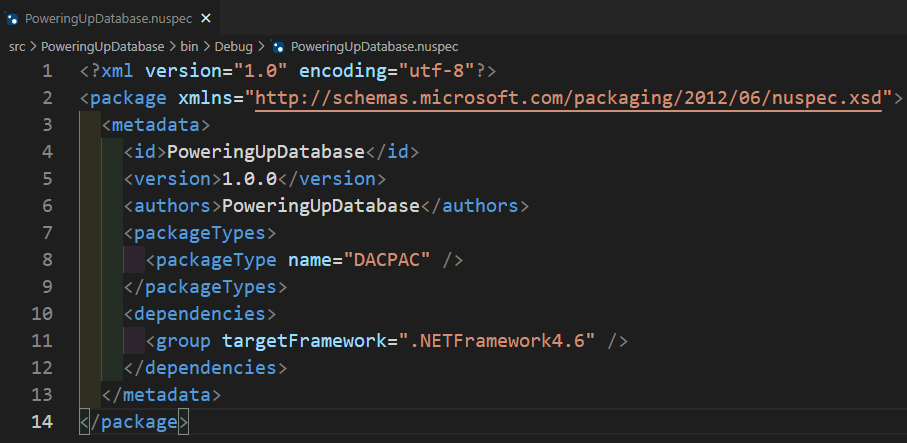
As you can see from the above image, clearly the tasks already know how to package the Data-Tier Application, and even created a manifest for you if you crack open the .nupkg file.
2. Run dotnet pack once more, but this time with verbosity turned on and dumping out the logging to a file

You’ll notice now that a file is created in your repository called build.log. If you open the file, you will be shocked how much logging there is. How can you find the needle in the haystack? We’ll it’s actually quite easy. You are looking for the .nupkg when it is produced.

That’s neat. In the above image, you see which .targets file is being used. When you open the NuGet.Build.Tasks.Pack.targets file in your editor, you can see the properties that are being used. These properties can be overwritten multiple ways, but the two common ones are doing it from the .NET CLI by passing /property=value arguments, or in the project file itself. Let’s test out both.
3. Open PoweringUpDatabase.sqlproj file and add the packaging properties
4. Open PoweringUpDatabase.Tests.sqlproj and add the same content expect PackageId which should contain .Tests at the end
5. Since GeneratePackageOnBuild is set to True, run dotnet build /p:PackageVersion=0.0.1 instead of dotnet pack
You’ll see now that the version has changed and the .nupkg files are placed in the output folder.
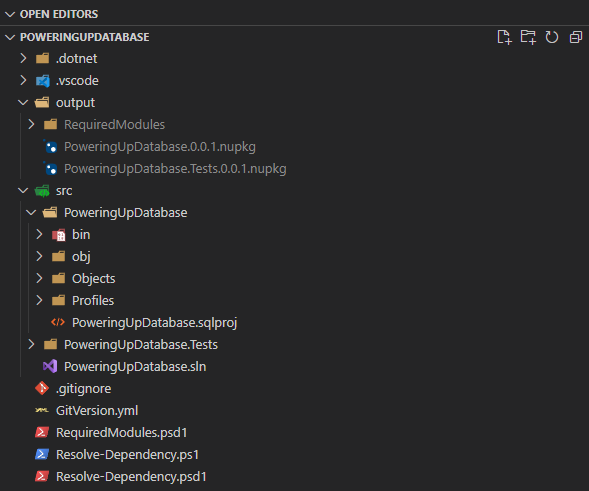
That was just a short glance at the internals of MSBuild. Would you have known it from Visual Studio?
Database versioning in Data-Tier Application
It’s nice that you now have a packaged version of your database in a NuGet package, but can you also identify which version has been deployed on your target server? We’ll be glad you asked, as this question is asked in the database DevOps community quite often how to manage this.
There are many methods on versioning your Data-Tier Application:
- Data-Tier Application attribute
- Code-driven
- Data-driven
- Extended properties
- SQLCMD
- Assembly-driven
- External settings
In this blog, you’ll learn how to do it with the Data-Tier Application attribute, since you’ve already been modifying the project file by hand. For database developers working in Visual Studio, the below image should be familiar to you.
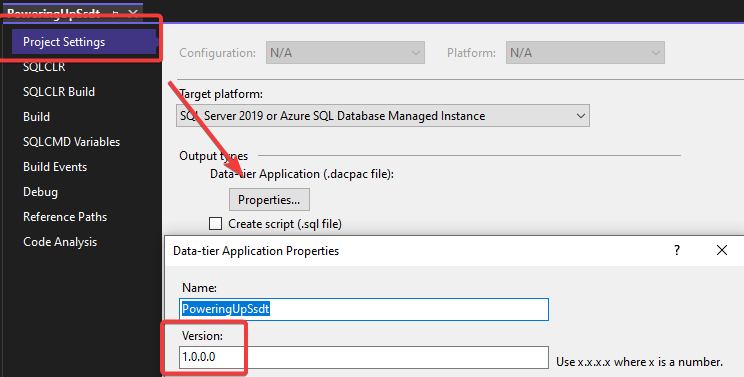
When you “Publish” the database project, you are presented with the window shown below.
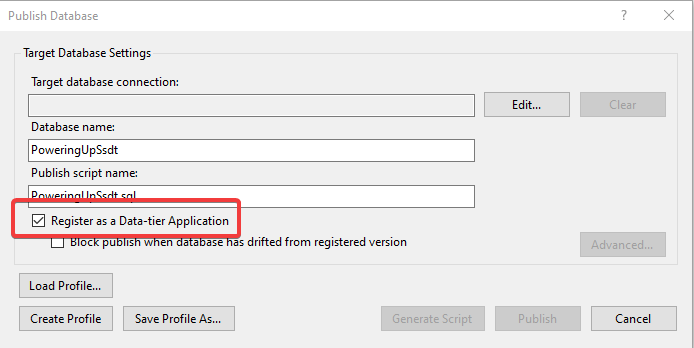
When this checkbox has been selected, it essentially registers the Data-Tier Application against a table called dbo.sysdac_instances which can be found in the msdb system database. Inside the table, you will find some interesting columns such as:
- Instance_name: Name of the DAC instance specified when the DAC was deployed
- Type_name: Name of the DAC specified when the DAC package was created
- TYpe_version: Version of the DAC specified when the DAC package was created
Searching through the available attributes in the .NET SDK Database file reveals the attribute that’s responsible for setting the DacVersion.
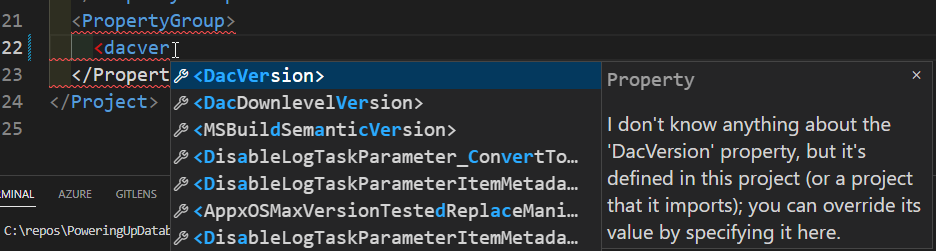
By adding the following code snippet in the project file, you make sure that the versions stay in-line with each other when building starts.
Tieing it together, run the following in a Windows PowerShell terminal while fetching the version number from Git history.
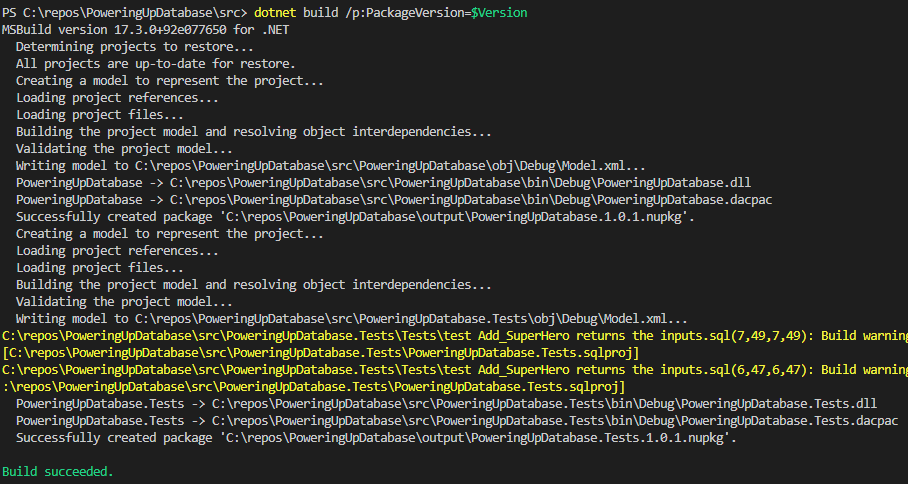
Alright, when you publish the created Data-Tier Application, you need to specify the /p:RegisterDataTierApplication=True setting when calling sqlpackage.exe to register the schema with the database server. When you’ve done so, you can see the version number added to the table in msdb.

Create your artifact repository
The outputs that you’ve been generating up until now should be stored somewhere for reuse in later stages. This way, you, your team or even stakeholders can decide which version to deploy on an environment. Introduce the artifact repository. Many modern continuous integration servers expose some kind of artifact repository where you’ll be able to purge unwanted artifacts after some time. Artifact repositories also make it much easier to access the output that was generated by the build from development machines. Azure Artifacts is a dedicated artifact repository that can create and share NuGet packages within your teams.
Before you follow the steps below to push the NuGet package, make sure that you’ve created a feed. This example uses PoweringUp as feed name.
- Add the Azure Artifacts Credential Provider in the RequiredModules.psd1 to automate the acquisition of credentials needed to push NuGet packages
2. In the root of the project, create a file called NuGet.config and add your source
3. Run Resolve-Dependency.ps1 in a Windows PowerShell terminal session to install Azure Artifacts Credential Provider
If everything was successfully, you can find the Azure Artifacts Credential provider installed in the .nuget folder at %UserProfile%/.nuget/plugins/
4. Push package by using dotnet nuget push --source "PoweringUp" --api-key "somearbitarykey" <package-path> --interactive
It will prompt you to login and use the device code. This is a more secure way to interact with Azure Artifacts than directly putting in your Personal Access Token in NuGet.config file.
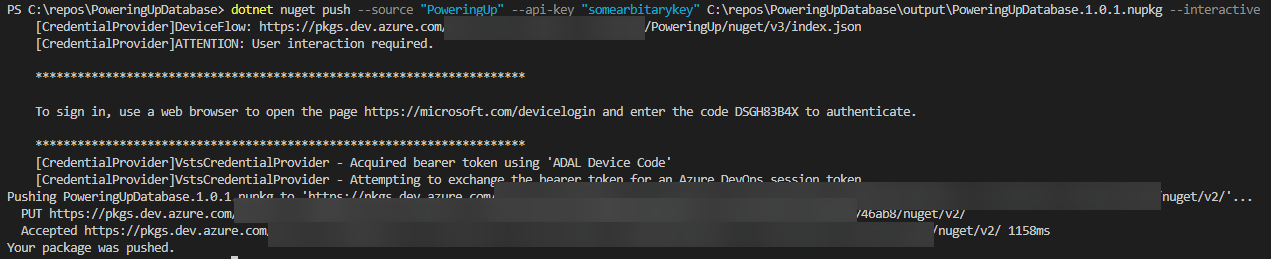
You now have successfully pushed the package to Azure Artifacts. You can now even restore it with dotnet restore in your .NET SDK Database projects if you want!
Conclusion
Did you make it? Hopefully you did! You have covered more ground in this second part of the series. You have learned why you should version your database appropriately and learned about GitVersion. GitVersion is an awesome tool to introduce in your toolbox, as it looks at your Git history and grabs the next version. At the end, you’ve successfully created a NuGet package and pushed it to an artifact repository for sharing. The ability to create and push packages to a centralized location, helps further down the line when you’re releasing the Data-Tier Application to different environments. It builds up a great history of packages that have been pushed. With the new .NET SDK database project style, you can even make a reference to it!
Resources