Continuous Delivery series final part
Finally, the last part of the Continuous Delivery series is here! Great to have you on board for the final round. A quick recap of what is already done in previous parts. You have created the new .NET SDK-style database projects and included the tSQLt framework to test your database. The ability to version the tools you require for your development is a luxury, not only for you, but also for your fellow developers. You’ve introduced NuGet for Data-Tier Applications and the ability to version them accordingly. The project layout structure has also been standardized. This is going to be extremely useful for this final part, as you are going to see.

- Gijs ReijnCloud Engineer
For this final part, there is a soft requirement on the PoweringUp PowerShell module. The techniques and the ability to re-use the components that are created there, will be useful to have. It is not mandatory to have this module available, but you might miss out on the knowledge from this series. If you want to make full use of this last hands-on part, make sure you have worked your way through that series first. If you already did, that’s amazing! You are going to learn to tie everything together with automation techniques and principles. Grab your cup of coffee and let’s dive into it.
Automate almost everything
Automation is one of the fundamental blocks in the DevOps world. Of course, there are things that can never be automated, but many tools support automation through some command-line utility. By now, you should know in this series, the tooling that has been chosen, supports running commands through a command-line utility (shocker!). Despite that, most development teams don’t automate their build and release process because it might seem like a terrible task to do. Doing a release process manually for the first time, might be much easier. Doing it tenth times repeatedly, becomes cumbersome to do. When the process and deployment steps are automated, you gain more and more confidence that it is reliable up to the point you can simply click a button (or single command) and you know for sure it will work. It doesn’t mean that you have to automate everything at the get go. It should at least be done before you go to production, as the process gradually matures over-time. You should look where the current bottleneck lays.
Having said that, in this series you’ve been running the commands to build, test, push and release the Data-Tier Application manually. Wouldn’t it be great to create a script for each stage in your deployment pipeline in a simple dependency network?
Build and deployment scripting tools
Automated build tools have been a long part of software development. If you check out the list on Wikipedia, you’ll find a dozen tools you can use. All build tools have a common core, which allows you to model a dependency network. You have already started with the initialization of your environment, by bootstrapping all the required tooling you need to build your database project. When you ran the commands step by step, you did it in a sequence you knew it would require. For example, before you test your Data-Tier Application, you need it to be built and deployed first. Your build tool should work that out for you. Therefore, creating a script for each stage clearly represents that process. This will also help in defining a well-defined structure without minimizing dependencies between each stage.
If you have the PoweringUp PowerShell module available, you already know which build automation tool is used. This build automation tool is written in PowerShell and is called Invoke-Build. The script that handles each stage for building that module, can be tailored around database projects, and that’s exactly what your going to do. So, are you ready to set it up? This is going to be a bumpy road. Let’s first connect our private repository and retrieve the PoweringUp module into our required toolbox.
You already connected once to Azure Artifacts when you pushed the NuGet package, but connecting with PowerShell is a bit buggy. In general you have three options to authenticate with PowerShell:
- Register the repository with -Credential parameter with the device flow (used before)
- Explicitly create a credential object and pass it with -Credential parameter
- Configure an environment variable with your credentials in VSS_NUGET_EXTERNAL_FEED_ENDPOINTS
In this case, configuring an environment variable is chosen, as this can be created under your own user variables. This variable with your credentials, only require “Read” permissions on packaging for the Personal Access Token.
- In your Windows PowerShell terminal, execute the following line to populate the environment variable
2. Restart your Windows PowerShell terminal
3. In Resolve-Dependency.psd1 file, you can specify the parameter to be passed against Register-PSGallery
4. Open RequiredModules.psd1 file and add the PoweringUp module dependency as shown below
5. Run Resolve-Dependency.ps1 script in the Windows PowerShell terminal
When the dependencies are resolved, the PoweringUp module is saved in target folder. You can now wrap around the core logic to initialize the environment always as a first step and start preparing for the dependency network.
6. Download the .build.ps1 script in the root folder from Github. (https://github.com/Gijsreyn/continuous-delivery-series/blob/main/.build.ps1) The script was forked from Sampler and tailored for database automation
7. Create build.yaml file in the root of the project and add the following
That’s a bit of code right there. The code above should be familiar to you as you went through the PowerShell series. The build script simply wraps around the resolving script, and figures out if it already ran. If that’s not the case, it will run it for you. Inside the YAML file, logic can be added that injects the parameters against Invoke-Build. All this preparation work, helps in modularizing your database build and release process into one script. It also sets the standard way of doing things. Before moving these scripts to the PoweringUp module, you are going to test it out locally to gain confidence it works as expected.
8. Create .build folder in the root, add a file called FakeTask.build.ps1 with the content below
task Faketask {}
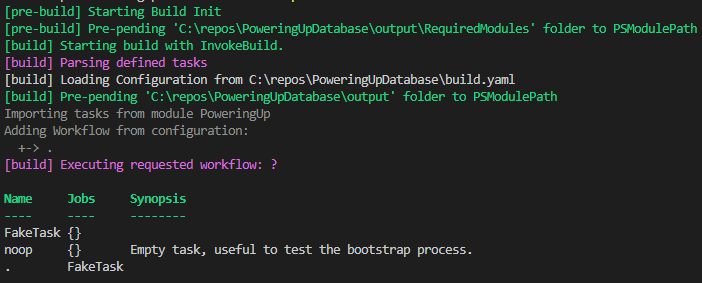
9. Run .\.build.ps1 -Tasks ? in your Windows PowerShell terminal
You should now see that the task has been loaded into the session.
Have you already cleaned up your project?
To keep your build always in a consistent state, it makes sense to cleanup your build output and other required setups. Let’s take it by example. You have build the database project that produces the Data-Tier Application in the output directory. LocalDB has been setup, you’ve deployed the Data-Tier Application and executed the tests. You want to test out this process once more to “tear down” the environment, and “tear it up” again by simple running the script. It would make sense to first clean everything up, before tearing it up again. This concept is well-known in development teams. Let’s grab the broom and start defining the clean stage.
- Create Dotnet.Database.Clean.build.ps1 in the .build folder
- Add the following code snippet to define two tasks that are responsible for the cleaning
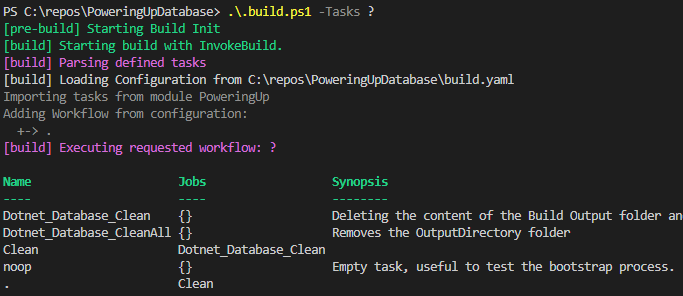
3. Run .\.build.ps1 -Tasks ? in your Windows PowerShell terminal to see if the tasks have been exposed
You can remove the Fake task script and modify the YAML to run Clean as default.
Define the build stage
You have been running dotnet build quite some time now from the terminal and it’s now time to wrap that little guy inside a script. You’re now going to leverage the structure that you’ve layed down to determine the absolute paths. Everything was done for a reason, right? In the below steps you see why wink wink.
- Create Dotnet.Database.Build.build.ps1 in the .build folder
- Add the following code snippet to build the project based on the project file
3. Add the build task as default in build.yaml file
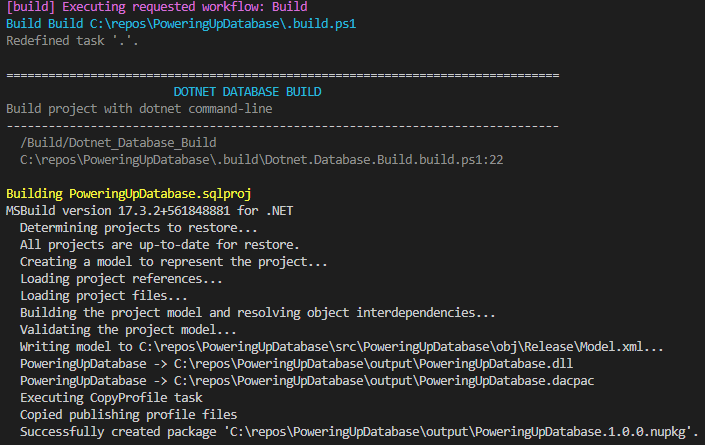
Both task are defined as default. When you run the build script from the terminal, you’ll notice that the files are first cleaned up. When the clean stage finished, the build stage kicks in. You should find after the build finishes, that all build output is dumped in the \output folder. From there on, you can pick up easily the next stage.
Tear down, tear up with LocalDB command-line
In previous series, the Data-Tier Application was deployed against LocalDB. Since LocalDB is installed locally, the LocalDB utility automatically became available to use. This command-line utility is called SqlLocalDB and can be invoked from the command-line. This becomes especially handy as you can wrap around this utility based on scripting. Let’s check it out!
- Create Dotnet.Database.LocalDB.build.ps1 file in .build folder
- Add the following code snippet to clean and create a new LocalDB instance called UnitTesting
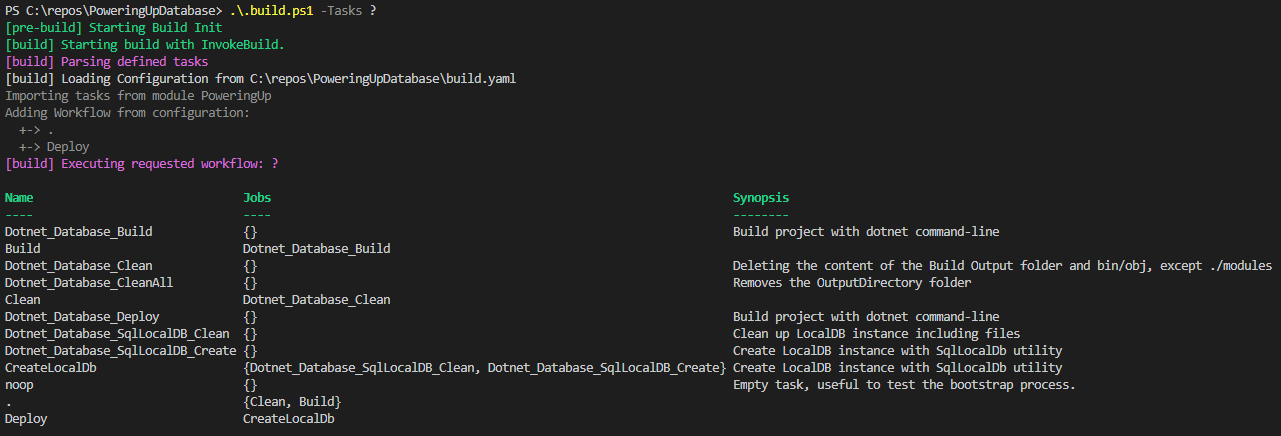
You can of course add the CreateLocalDb task in your default task to be executed right after build. It really depends on your own need, and you can see that you’re getting the hang of it by defining the dependency workflow. To demonstrate a different approach, you can include a different task that can be executed by the build engine.
3. In your build.yaml, create a new task called Deploy and include the CreateLocalDb task
You have now split both build and deploy stages in your configuration. Running .\.build.ps1 -Tasks ? shows the tasks that will run for each job.
Deploying Data-Tier Applications with publishing profiles
Deploying both Data-Tier Applications has been done manually by providing a connection string. When you automate the deployment, somehow you have to get both connection strings filled in dynamically. You can hardcode these values inside your scripts, but that’s never a good practice. SqlPackage has the ability to use a DAC Publish profile. The profile defines a collection of properties and variables to use when you deploy. This becomes useful, because as already mentioned, you will be able to determine the paths based on the name if you follow a naming convention.
- Create Profiles folder in the main project and add a file called PoweringUpDatabase.Local.Publish.xml
- Inside the profile file, add the following content
3. Create another Profiles folder in your test project with a file called PoweringUpDatabase.Tests.Local.Publish.xml
4. Add the following content
Make sure when moving to higher environments, you set suitable settings e.g. <BlockOnPossibleDataLoss>True</BlockOnPossibleDataLoss> and the target connectionstring encryption settings
You can create a task that copies the files from this folder to the output directory, but here comes the knowledge in handy that you gained about the MSBuild eco-system. To put the cherry on the pie, you can specify a target after the build has finished inside your database project.
5. Open your .sqlproj file and create a new task property to copy the file to the output directory
Make sure you do the same for the test project and notice what happens when you build the project once more.
You can now wrap it up by introducing the deploy script.
6. Create Dotnet.Database.Deploy.build.ps1 file in the .build folder
7. Add the following code snippet to publish your databases to LocalDB based on absolute paths
Don’t forget to include the DeployLocalDatabase task to your Deploy job inside the build.yaml file. By now you can see that everything gets build step-by-step and that’s the goal of it all. Make small incremental steps. Since everything is now deployed, you are going to add the last section, which is the testing stage.
Executing tSQLt from command-line
Remember from the first part that you had to execute exec.tSQLtRunAll to run the unit tests in the test database? You connected to the database with Visual Studio Code. Unfortunately, Visual Studio Code does not have an utility out of the box to execute queries from the command-line. On the other hand, there are enough tools out there that do the trick. For now you can stick with native .NET, but know that there are more tools that can support querying from the command-line.
- Create Dotnet.Database.Test.build.ps1 file in the .build folder
- Add the following code snippet
The above snippet leverages the native .NET to execute the query against the database. Since you want to save the results of the unit tests in a format CI systems can consume, you are using the EXEC tSQLt.XmlResultFormatter stored procedure to create NUnit results. NUnit is a standard format created by the NUnit team and is very popular amongst development projects. If you’re up for the challenge, you can even write an additional task to fail when tests have not passed. That’s up to you! When you are ready with your tasks, you can publish them to the PoweringUp module. These tasks can be exposed for each database project that is created by you, or other teams that want to leverage this functionality. You’ve done a great job in database automation and modularizing.
Conclusion
It was a hell of a ride, but you have survived the series on Continuous Delivery. In this last part, you’ve learned a lot about automation principles and created a framework around your database project for re-usability. You can run steps in sequence to clean, build, deploy and test your database project. For each of these stages, you can run them in the sequence you require. This helps in integrating with any CI/CD system you manage, as many of these systems support running PowerShell on the fly.
The PowerShell module can be installed by any user from your own repository, making it extremely valuable in each project you create. Not only for database projects, but the principles and techniques behind it, can be used in more development projects. This helps in bridging the gap between your development team and operations as they can work together simultaneously to set up a smooth build and release process.