Boost Productivity: How to Manage your Software Solution with One Tool
Hold your breath.
On average, developers spend 20–30% of their time setting up and configuring their development environments.
That sounds shocking, right? We’ve all been there – you grab an issue, and before you know it, you’re caught in a whirlwind of installations. If you are even lucky, there is documentation around with the specific versions you need.

- Gijs ReijnCloud Engineer
Key to a software project’s success is keeping installations, tools, and packages in source control, whether open-source or private. And no, I don’t mean the actual files. What I mean is a document stating what’s required to get the user bootstrapped from the get-go.
In the configuration management landscape, this is often referred to as Configuration Document. The tool ingests this document and handles the execution of steps to configure your machine. After the steps have finished, it reports back the desired state. The only requirement to do is to instruct the tool on how to start executing the document.
When you have such a document created, version control becomes responsible for changes and history. You can create a review process around it when major versions increment. For example, you decided to switch from .NET framework to .NET core. You add the requirement to the document, start testing, and merge it into main once everyone is satisfied. If .NET framework is not needed anymore, it can be set to absent, and later removed.
What if you already have an existing project?
Don’t worry about it. You can export many tools and packages in some way. In this blog post, you will take the hats and look from two different perspectives. One starts from the ground up, where you take the role of DevOps engineer. This is often called a greenfield project. The other already starts with an existing project (brownfield). You are landing in as a .NET developer and need to get started right away.
Each perspective goes through an exercise. If you feel you want to follow along, make sure you go through the prerequisites first. Not feeling it, but want to learn? These exercises aren’t primarily for developers or DevOps engineers. Other roles like solution architects, or tech-savvy business analysts can enjoy what you’re about to read.
Prerequisites
Before you go through the exercise, the one (or actually two) tool you are going to need is ᴅsc.ᴇxᴇ in combination with PowerShell. Both tools are cross-platform and developed by Microsoft. The projects are open-sourced on GitHub. Each exercise was tested on a Windows machine. If you want to install ᴅsc.ᴇxᴇ, you can use winget on a Windows 10 or 11 machine. To install ᴅsc.ᴇxᴇ, type in the following in a command prompt or PowerShell terminal session:
winget install DesiredStateConfiguration-Preview
For others operating systems, you can go to the releases page and download the installer specific to your machine.
Each exercise will leverage single or multiple PowerShell modules. Make sure the following are installed on your machine:
- Microsoft.WinGet.Dsc - v1.9.2411
- cChoco - v2.6.0.0
- Microsoft.VisualStudio.DSC - v1.0.26
- Microsoft.DotNet.Dsc - v0.1.0-alpha
- Microsoft.VSCode.Dsc - v0.1.1-alpha
Exercise 1 - Living the hardcore preview life DevOps engineer
Are you that engineer that always thrives on trying out latest and greatest preview features? You are living that life on the edge because it is your passion.
It’s great to explore new possibilities early on. Rabobank has rules that apply to preview functionality. But, there is a balance between exploration and restricting. If exploration stays within the boundaries of the rules, it starts innovation. That means a win-win for the employee and employer.
In the prerequisites, you have already installed a preview version. You are not done with that. The persona in this exercise is the hardcore DevOps engineer. The engineer’s nature is exploring preview features and has tons of scripting knowledge. Bash and PowerShell are the go-to automation languages and Visual Studio Code (VSCode) is the preferred editor.
Other tools to customize Windows, like Microsoft PowerToys, helps the engineer optimize the workstation for performance. With Project Mercury around the corner, Steven Bucher, the Product Manager on the Microsoft PowerShell team, convinced the persona to use Windows Terminal. The list goes on and on. I'm not really sure if I'm describing myself here, maybe I'm not (I am).
To give a small taste of how to install one of the tools, you can create this so-called configuration document. This is the document that can be stored into version control.
- Create a file named configure.devbox.dsc.document.yaml
- Add the following schema definition and security context
The document clearly states what package and version is pinned for the PowerShell 7 Preview resource. You can open a command prompt and tell the tool to get the machine in the desired state:
dsc config set --path configure.devbox.dsc.document.yaml
If done successfully, you will see the output returned telling what has changed.
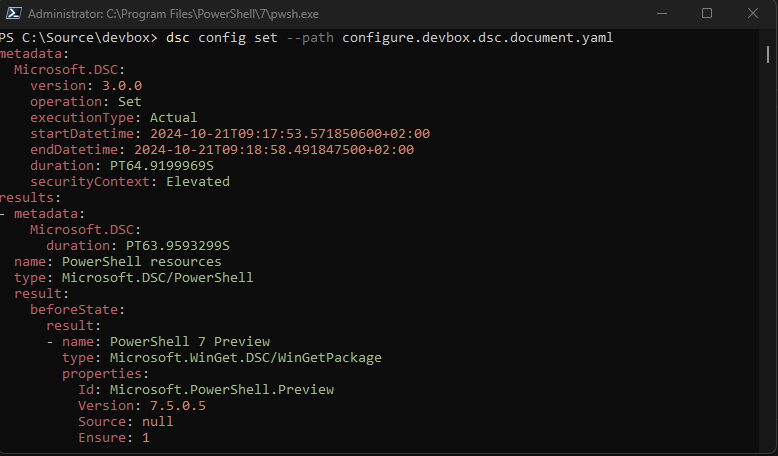
Here is the thing: you are not limited to choosing the tool that gets invoked by the tool. That’s sounds cryptic, I know. Let me explain how ᴅsc.ᴇxᴇ logic flows when it gets started and digest the document:
- It will attempt to locate the Microsoft.DSC/PowerShell resource in the PATH or DSC_RESOURCE_PATH environment variable
- When the resource is found, it locates the Microsoft.WinGet.DSC module in the $env:PSMODULEPATH variable
- If the module is installed, the JSON is validated and the operation set is called on the class
- The class invokes dlls from the winget-cli
If you have fiddled out of the story that 3 tools are involved in this operation, then you are quite right. PowerShell, DSC, and WinGet are all involved, but ᴅsc.ᴇxᴇ is the driver. In the above example, WinGet is the tool for installing packages. While WinGet is on the rise, other package management tools like Chocolatey have a great eco-system of packages available. To illustrate that limitless chose of tools, let’s install another one:
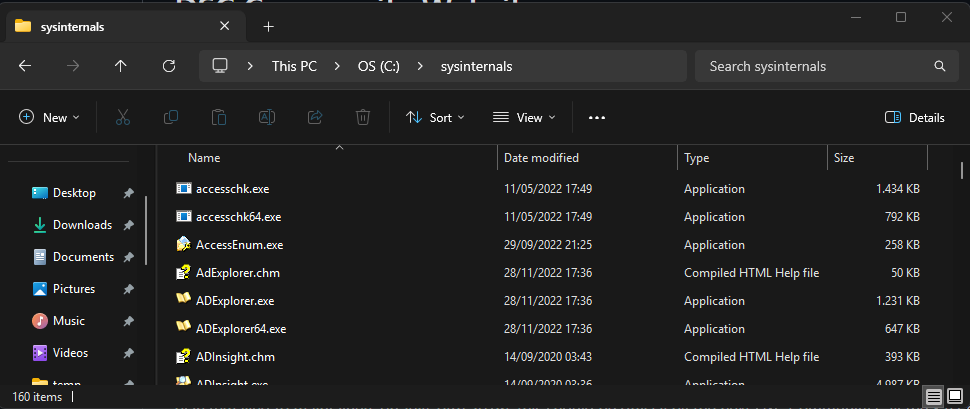
Running the command once again, results in the sysinternals suite being installed in the given directory.
The challenge for you in this exercise:
- Try adding other tools to the configuration document.
- Configure your developer workstation in the same way as you install the tools.
Exercise 2 - The “I” come aboard a project that exists for 10+ years developer
It’s pretty common. I have seen it with many vendors I have worked with. Software, tools, packages, however you wanna name it either contained legacy code or evolved during its lifetime. You as rookie just get started on the project. You clone the repository and attempt to build it, only to be presented with a bunch of difficult error messages. That brings us back to the opening statement. You don’t want yourself to spend that 20- 30% of time, do you?
You heard around the virtual corridors that one developer got a working build on their local machine. You ask what versions are in use, getting back a blank face. Versions? What versions do you mean? You scratch the back of your head, thanking your colleague anyway. Then you rollup your sleeves and tell your colleague: give me 5 minutes, I’ll be back with instructions that can help me out, but also the others.
During that phase, you at least learned the project is mostly developed in .NET code. Most developers use Visual Studio or VSCode as preferred editor. The pipeline uses .NET tools to determine the Semantic Versioning. You wanna know the following:
- What components are installed through Visual Studio
- What extensions are installed in Visual Studio Code
- What .NET tools are installed locally
It’s time again to grab your sorcerer’s hat and write instructions for your fellow colleague. You first provide instructions to your colleague to install ᴅsc.ᴇxᴇ:
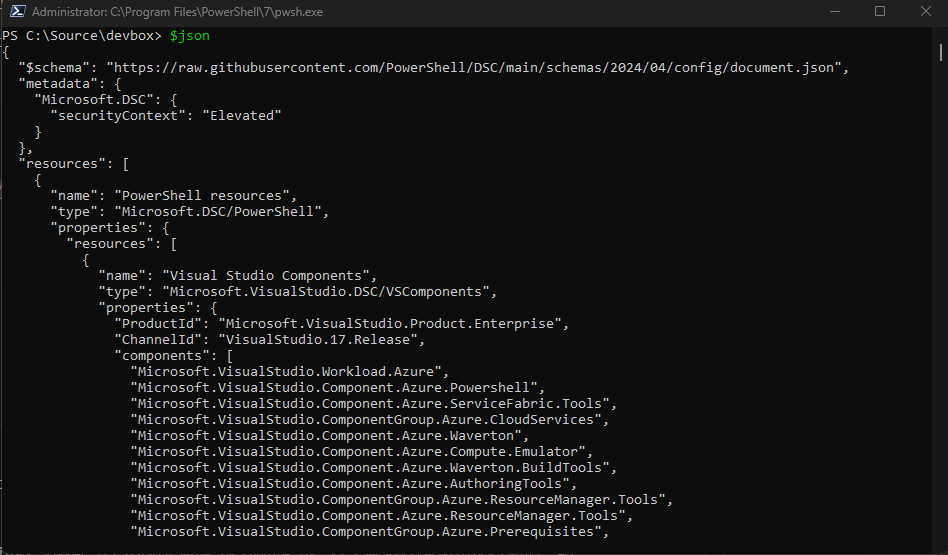
With little adjustment, you have created your first configuration document. The document stores all the Visual Studio components you’re colleague has installed.
Visual Studio Code has the export operation implemented. You change the document slightly and call dsc config export:
It’s not that much of code and you provide the instructions to your fellow colleague. Together you capture the data and put everything into a single document. In the following code, a truncated example illustrates all resources combined:
Your colleague has been so kind to check it into the repository. You grab the latest changes, run the dsc config set command, and within a few minutes, your workstation is up and running. With your eyes closed, you run the build again, giving back a green light. Perfect, all the artifacts are built, and tests are executed.
The challenge for you in this exercise:
- Come up with ways to bootstrap PowerShell modules
- Create an example for a Python application
Conclusion
Dave Farley, author of Continuous Delivery Pipelines, mentioned it already in his book. Store your tools that build your software along with source code. This allows you to pin specific versions for the software’s lifetime. Having a single tool available to install, manage, and uninstall these tools, decreases the time developers or engineers have to spend on setting up their developer workstation.
Additional resources