Automate Azure Databricks using API calls with PowerShell
In today’s data-driven landscape, automating workflows and efficiently managing resources is essential for organizations utilizing cloud products like Databricks. This article delves into how to automate Databricks operations using API calls.

- Hylke MuschDevOps Engineer
Why is automation within Databricks so important? Beyond the convenience of deploying infrastructure across development, testing, and production environments with just a click, automation is vital in secure environments. In such settings, personal accounts may(/should) not have the same access as development environments, making it necessary to automate every task required within a CI/CD pipeline.
But why don’t we use IaC to automate these processes? Azure Databricks is a third party offering within Azure and isn’t fully integrated with all IaC tools like bicep for instance. So that is why I choose to automate this with Azure PowerShell but tools like terraform can also be used.
Now that we understand the significance of automating processes, let’s explore how to implement this within Azure Databricks.
Prerequisites
I will be using mainly PowerShell 7 and Azure PowerShell for these examples, but you could also use languages like Python and Azure CLI to perform the same API calls. If you want to follow along, make sure the following is installed on your machine or in place.
- Powershell 7+ or above
- Az Powershell module 12.0.0+ or above
- Your identity should be a User in Databricks
Exercise 1 - Creating Headers
First, we will go over how to create Databricks headers to authenticate with the Databricks Workspace.
- If you haven’t already, please run Connect-AzAccount and authenticate using your account. Set the context to the Azure subscription where your Azure Databricks workspace resides (You can do this with Set-AzContext if it does not pop up).
- Change the $DatabricksWorkspace and $ResourceGroup variables in the above code block to the Resource Group name and Databricks Workspace of your environment.
- Now you can run the above code block to generate headers for Databricks.
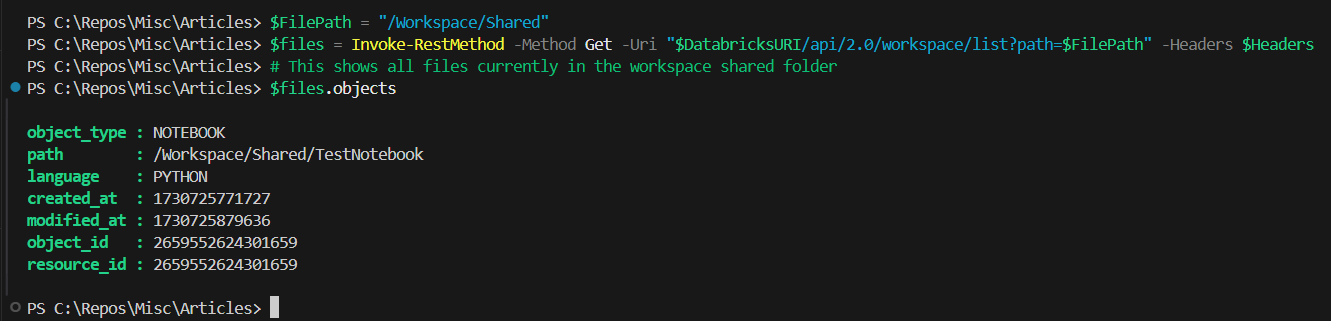
- To test the headers, we can make a simple API call to get files in the shared folder of the workspace, by executing the following code block.
Exercise 2 - Creating Jobs
A job is a way to schedule certain actions within Databricks. For instance, if you have a notebook that needs to run daily for some process, you could make that part of a job to trigger at that time. You can also schedule other jobs within a job. So, if you have a dependency on one job for another notebook or job, you can first run that job and then the notebook or job that has the dependency.
To create a job, you need a JSON payload to define how you want your job to look. Here is a sample job, this example assumes you have a notebook called TestNotebook located in the shared folder of the Databricks workspace.
- Create a json file called TestJob.json containing the json in the above example and replace the user_name value with your identity.
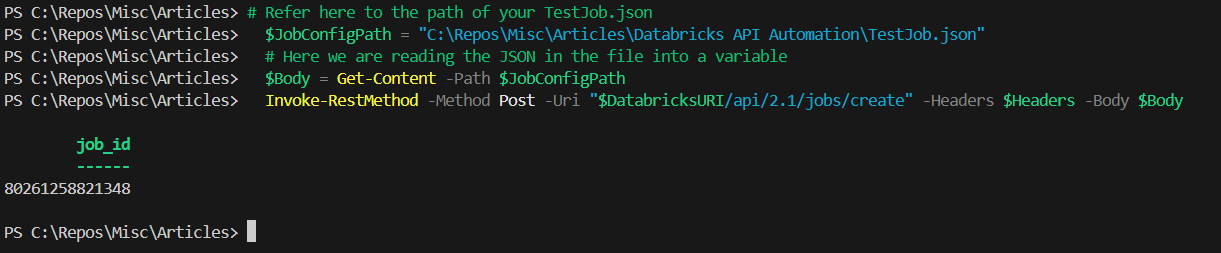
- Get the full path to the TestJob.json file and replace the $JobConfigPath variable in the below example with that value and execute the code block.
And as you can see here, it successfully executed the API call and created the job.
3. And now we will do a GET call to verify if the job is created, execute the below API call.
Exercise 3 - Creating Clusters
A cluster is the compute resource on which your notebook runs; you always need some form of compute to execute notebooks and access the Hive metastore.
You might be wondering about the previous example where the job notebook also requires compute resources. If you look closely at the job configuration, you will see the section labeled job_clusters. This section specifies the cluster that is created when the job is run, and it will automatically clean up once the job is completed.
To create a cluster, you need a cluster config. Here is an example for a basic cluster config:
- Similiar to the above example create a TestCluster.json file containing the above json example.
- Get the path to the file you created and replace the value of the $ClusterConfigPath variable in the below example with the path to the file and execute the code block.
And as you can see here, it successfully executed the API call and created the cluster.

Exercise 4 - Creating a script for a CI/CD Pipeline
So far, we have successfully rolled out a number of API calls. Now we are going into a production scenario of deploying this within an Azure DevOps pipeline. We are going to combine what we learned into one script. We will stop using hard-coded variables and instead pass them through with Azure DevOps.
1. Create a file called Create-Job.ps1 with the code example above.
2. Create a file called TestJob.json with the json example given in exercise 2.
- Add the above Yaml task to your Azure DevOps pipeline.
- Change the ScriptPath and JobConfigPath values to the path to the files made in step 1 and 2. Note this should be the path during a pipeline run.
- Change the DatabricksWorkspace and ResourceGroup values to the correct names within your environment.
- Change the azureSubscription value to the name of your pipeline SPN and start the pipeline.
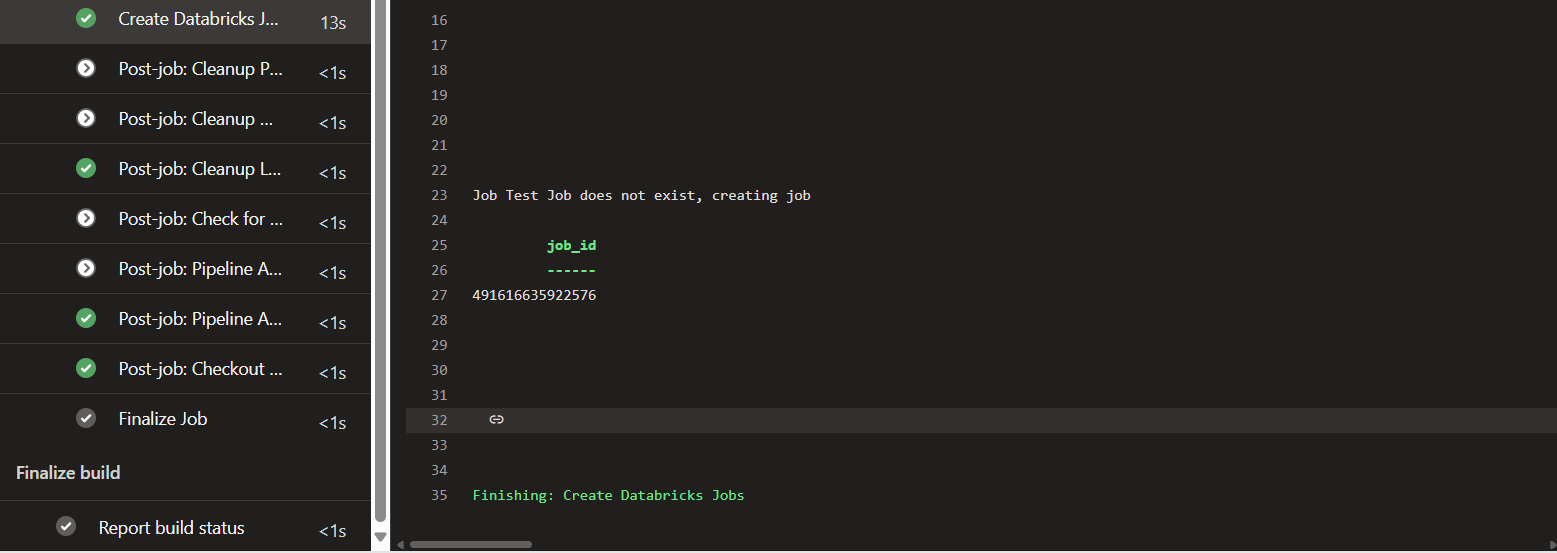
As you can see, the task executed successfully, and the job is now created.
Note If you are having any trouble authenticating, please verify the SPN has been added as service principal to the Azure Databricks Workspace. See here Databricks Documentation.
Conclusion
Automating operations within Azure Databricks using API calls is a powerful approach that enhances efficiency and streamlines workflows. By leveraging tools like PowerShell you can easily manage resources, create jobs, handle clusters and much more programmatically. This not only simplifies the deployment process across development, testing, and production environments but also ensures that tasks are executed consistently and securely, especially in environments with restricted access.
Through the examples provided, we’ve seen how to authenticate with Databricks, create headers for API calls, and perform essential operations such as listing files, creating jobs, and managing clusters. Integrating these API calls into a CI/CD pipeline further enhances automation, allowing for seamless deployments and updates.
For more detailed information, you can refer to this PowerShell module for more PowerShell examples. And you can refer to the Databricks documentation for specific API calls.
About the author
- Hylke MuschDevOps Engineer